Step 10 - Deploy NAP with a CI/CD toolchain
In this lab, we will deploy a Docker NAP container with a CI/CD pipeline. NAP is tied to the app, so when DevOps commits a new app (or a new version), the CI/CD pipeline will to deploy a new NAP container in front to protect it. In order to avoid repeating what we did previously, we will use a signature package update as a trigger.
Note
When a new signature package is available, the CI/CD pipeline will build a new version of the Docker image and run it in front of the Arcadia Application.
This is the workflow we will run (the steps to run are later in this page)
Check if a new Signature Package is available
Simulate a Commit in GitLab (goal is to simulate a full automated process checking signature package every day)
This commit triggers a webhook in Gitlab CI
Gitlab CI runs the pipeline:
Build a new Docker NAP image with a new tag
date of the signature packageDestroy the previous running NAP container
Run a new NAP container with the new Signature Package
Note
The goal of this lab is not understand what is possible. Feel free to browse through GitLab to see how it all works.
Review the following Gitlab CI file
stages:
- Build_image
- Push_image
- Run_docker

before_script:
- docker info

Build_image:
stage: Build_image
script:
    - docker system prune --force
    - TAG=`yum info app-protect-attack-signatures | grep Version | cut -d':' -f2`
    - echo $TAG
    - export DOCKER_BUILDKIT=1
    - docker build --no-cache --secret id=nginx-crt,src=nginx-repo.crt --secret id=nginx-key,src=nginx-repo.key -t docker:443/app-protect:`echo $TAG` .
    - echo export TAG=`echo $TAG` > $CI_PROJECT_DIR/variables
artifacts:
    paths:
    - variables

Push_image:
stage: Push_image
script:
    - source $CI_PROJECT_DIR/variables
    - echo $TAG
    - docker push docker:443/app-protect:`echo $TAG`

Run_docker:
stage: Run_docker
script:
    - source $CI_PROJECT_DIR/variables
    - echo $TAG
    - ansible-playbook -i hosts playbook.yaml --extra-var dockertag=`echo $TAG`
Note
The challenge here was to retrieve the date of the package and tag the image with this date in order to have one image per signature package date. This is useful if you need to roll back to a previous version of the signatures.
Simulate an automated task detecting a new Signature Package has been release by F5
Steps:
From the Docker VM, delete any running app-protect containers prior to proceeding.
On the jumphost, open Firefox >
Gitlab#. If Gitlab is not available (502 error), restart the GitLab Docker container. SSH to the GitLab VM and runsudo docker restart gitlabIn GitLab, open
Projects>NGINX App Protect / nap-docker-signatureproject
SSH to the
CICD server (runner, Terraform, Ansible)VM
- Optional: Run this command in order to determine the latest Signature Package date:
You will see all versions published. In my case, it is
2022.06.08(2022.06.08-1.el7.ngx). We will use this date as a Docker tag, but this will be done automatically by the CI/CD pipeline.In GitLab, click on
RepositoryandTagsin the left menu
Create a new tag and give it a name (though the tag name is arbitrary and the job will run with any tag name) Example:
Sig-2021.07.13where ideally<version_date>should be replaced by the package version information found in the result of theyum infostep above. But it does not matter, you can put anything you want in this tag.Click
Create tagAt this moment, the
Gitlab CIpipeline startsIn Gitlab, in the
signature-updaterepository, clickCI / CD>Pipelines
Enter into the pipeline by clicking on the
running or passedbutton. And wait for the pipeline to finish. You can click on every job/stage to check the steps
- Check if the new image created and pushed by the pipeline is available in the Docker Registry.
In Firefox open bookmark
Docker Registry UIClick on
App ProtectRepositoryYou can see your new image with the tag
2021.07.13- or any other tag based on the latest package date.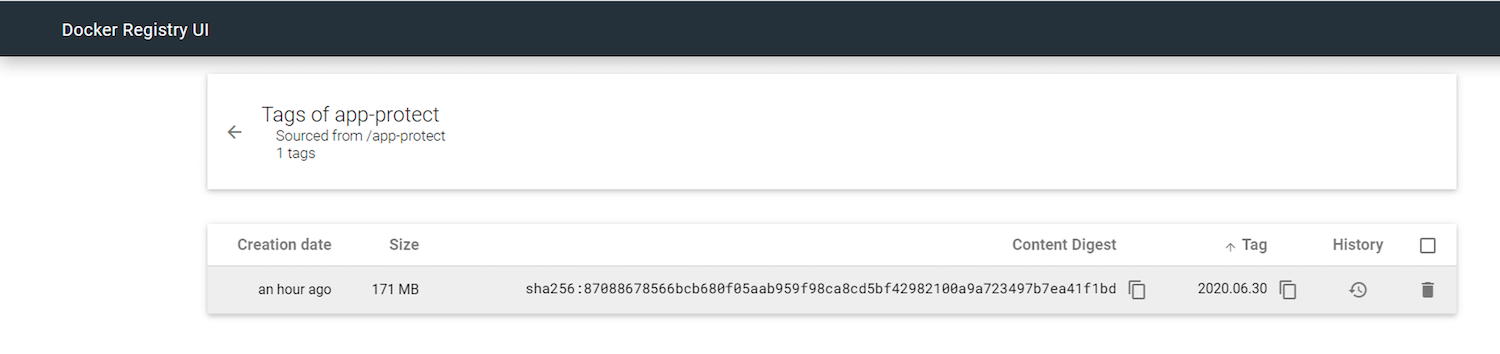
SSH to the Docker App Protect VM and check the signature package date running
docker logs app-protect --follow. Note it will take a few minutes for everything to start up in this lab environment with low IOPS.2021/02/24 13:59:24 [notice] 13#13: APP_PROTECT { "event": "configuration_load_success", "software_version": "3.332.0", "user_signatures_packages":[],"attack_signatures_package":{"revision_datetime":"2021-01-28T20:04:14Z","version":"2021.01.28"},"completed_successfully":true,"threat_campaigns_package":{}}You can create some traffic to the new container with Firefox>Arcadia Links>Arcadia NAP Docker favorite
Note
Congratulations, you ran a CI/CD pipeline with a GitLab CI.