Step 3 - Install the NGINX Plus and App Protect packages manually
In this lab, we will manually install NGINX Plus and NGINX App Protect on CentOS from the NGINX private repo.
Note
NGINX Plus repo keys are already copied to the CentOS VM. Normally you would need to put them in /etc/ssl/nginx.
Steps:
Use vscode or Windows terminal or WebSSH to the CentOS VM.
There is a “cheat script” if you don’t want to read through the steps, though it is recommended to follow the guide to learn what steps are needed. The script is
sh /home/centos/lab-files/lab-script-cheat.shClean up any existing NGINX repo/configurations already present:
/home/centos/lab-files/remove-app-protect-cleanup.shAdd NGINX Plus repository by downloading the file
nginx-plus-7.repoto/etc/yum.repos.d:sudo wget -P /etc/yum.repos.d https://cs.nginx.com/static/files/nginx-plus-7.4.repo sudo wget -P /etc/yum.repos.d https://cs.nginx.com/static/files/app-protect-7.repo yum clean allInstall the most recent version of the NGINX Plus App Protect package (which includes NGINX Plus because it is a dependency):
sudo yum install -y app-protectCheck the NGINX binary version to ensure that you have NGINX Plus installed correctly:
sudo nginx -vConfigure nginx
# vscode does not allow to you to write as root, must change permissions: sudo chown -R centos:centos /etc/nginx cp /home/centos/lab-files/nginx.conf /etc/nginxnginx.confuser nginx; worker_processes auto; error_log /var/log/nginx/error.log notice; # load the app protect module load_module modules/ngx_http_app_protect_module.so; # load njs module for prometheus exporter load_module modules/ngx_http_js_module.so; events { worker_connections 1024; } http { include /etc/nginx/mime.types; default_type application/octet-stream; sendfile on; keepalive_timeout 65; log_format main '$remote_addr - $remote_user [$time_local] "$request" ' '$status $body_bytes_sent "$http_referer" ' '"$http_user_agent" "$http_x_forwarded_for"'; log_format main_ext 'remote_addr="$remote_addr", ' '[time_local=$time_local], ' 'request="$request", ' 'status="$status", ' 'http_referer="$http_referer", ' 'body_bytes_sent="$body_bytes_sent", ' 'Host="$host", ' 'sn="$server_name", ' 'request_time=$request_time, ' 'http_user_agent="$http_user_agent", ' 'http_x_forwarded_for="$http_x_forwarded_for", ' 'request_length="$request_length", ' 'upstream_address="$upstream_addr", ' 'upstream_status="$upstream_status", ' 'upstream_connect_time="$upstream_connect_time", ' 'upstream_header_time="$upstream_header_time", ' 'upstream_response_time="$upstream_response_time", ' 'upstream_response_length="$upstream_response_length"'; # note that in the dockerfile, the logs are redirected to stdout and can be viewed with `docker logs` access_log /var/log/nginx/access.log main_ext; #for prometheus too big subrequest response errors subrequest_output_buffer_size 32k; js_import /usr/share/nginx-plus-module-prometheus/prometheus.js; server { listen 80 default_server; proxy_http_version 1.1; proxy_cache_bypass $http_upgrade; proxy_set_header X-Forwarded-Server $host; proxy_set_header X-Forwarded-For $proxy_add_x_forwarded_for; proxy_set_header Upgrade $http_upgrade; proxy_set_header Connection "upgrade"; proxy_ignore_client_abort on; client_max_body_size 0; default_type text/html; app_protect_enable on; app_protect_security_log_enable on; # send the logs to the logstash instance on our ELK stack. app_protect_security_log "/etc/app_protect/conf/log_default.json" syslog:server=10.1.1.11:5144; ## NGINX Plus API monitoring: status_zone arcadia_server; ## in this lab, there are 2 ingress definitions for arcadia ## no-waf is the ingress (virtualServer) without NAP enabled proxy_set_header Host no-waf.arcadia-finance.io; # main service location / { proxy_pass http://arcadia_ingress_nodeports$request_uri; status_zone main_service; } # backend service location /files { proxy_pass http://arcadia_ingress_nodeports$request_uri; status_zone backend_service; } # app2 service location /api { proxy_pass http://arcadia_ingress_nodeports$request_uri; status_zone app2_service; } # app3 service location /app3 { proxy_pass http://arcadia_ingress_nodeports$request_uri; status_zone app3_service; } } upstream arcadia_ingress_nodeports { zone arcadia_ingress_nodeports 128k; server 10.1.1.10:80; } # NGINX Plus API and real-time dashboard map $request_method $loggable { GET 0; default 1; } server { listen 81; access_log /dev/stdout main_ext if=$loggable; location = /metrics { js_content prometheus.metrics; } location /api/ { api write=on; } location = /dashboard.html { root /usr/share/nginx/html; } location / { return 301 /dashboard.html; } location /status.html { return 301 /dashboard.html; } location /swagger-ui { root /usr/share/nginx/html; } } }Note
The line
proxy_set_header Host no-waf.arcadia-finance.io;will tell the Ingress Controller the host name that we are accessing.Configure nginx app protect logging to log all requests.
Replace the file:
/etc/app_protect/conf/log_default.jsonan updated file that replaces"request_type": "illegal"with"request_type": "all"# vscode does not allow to you to write as root, must change permissions: sudo chown -R centos:centos /etc/app_protect cp /home/centos/lab-files/log-default.json /etc/app_protect/conf/log_default.jsonlog_default.json{ "filter": { "request_type": "all" }, "content": { "format": "default", "max_request_size": "any", "max_message_size": "5k" } }Note
By default
/etc/app_protect/conf/log_default.jsonwhich is installed with app protect, will only log illegal requests.Temporarily make SELinux permissive globally (https://www.nginx.com/blog/using-nginx-plus-with-selinux).
sudo setenforce 0Enable NGINX service on boot and restart NGINX:
sudo systemctl enable --now nginx.service
sudo systemctl restart nginx
Check to see if everything is running:
systemctl status nginxNote
Congrats, now your CentOS instance is protecting the Arcadia application.
Access the Application and Test the WAF:
In the Browser, click on the bookmark
Aracdia Links>Arcadia NAP CentosClick on
LoginLogin with
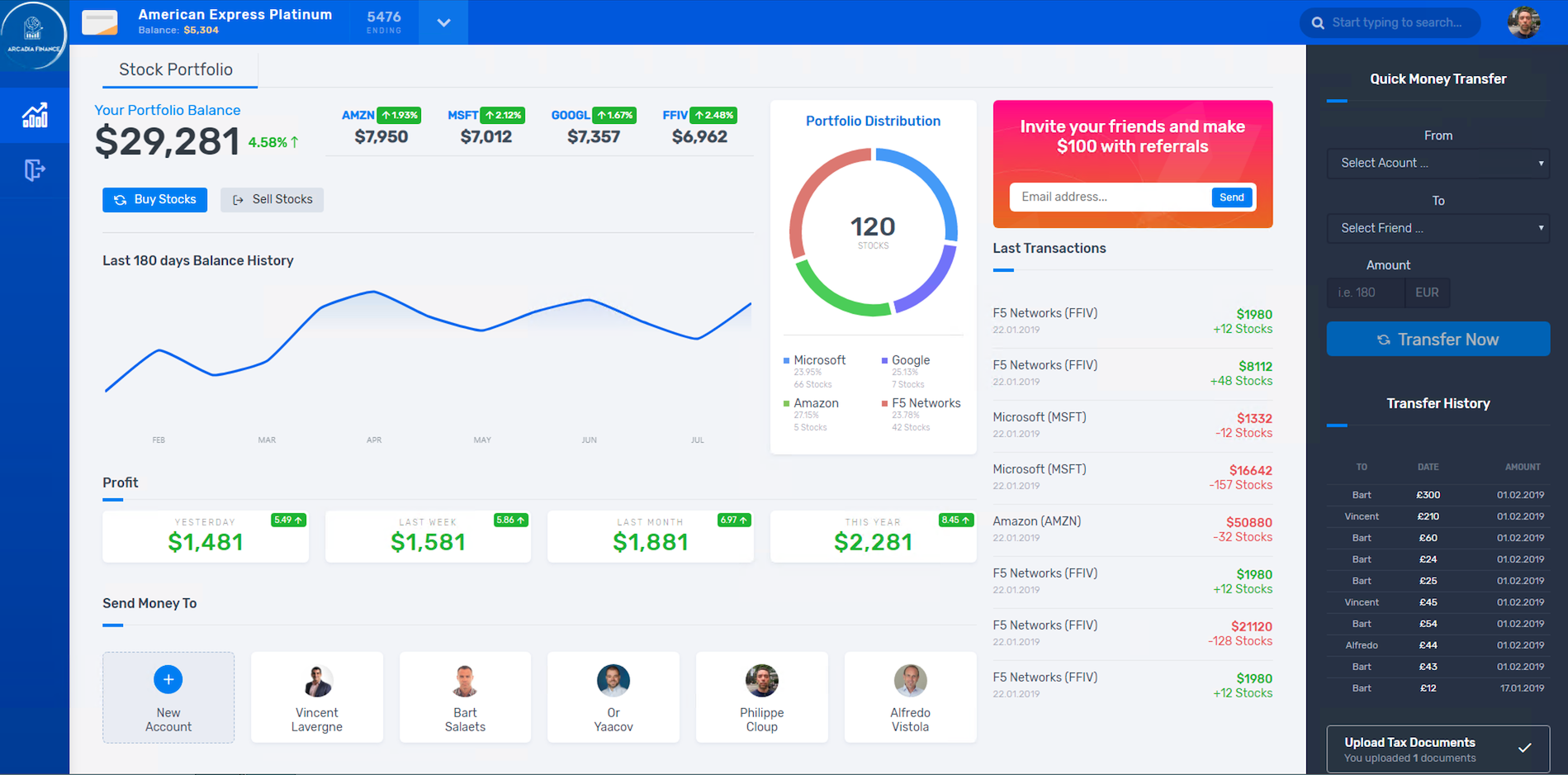
matt:ilovef5You should see all the apps running (main, back, app2 and app3)
Try some attacks like injections or XSS:
http://app-protect-centos.arcadia-finance.io/<script>Note
Other examples at the bottom of this page.
You will be blocked and see the default Blocking page
The requested URL was rejected. Please consult with your administrator.

Your support ID is: 14609283746114744748

[Go Back]
Note
Did you notice the blocking page is similar to F5 ASM and Adv. WAF ?
Next step is to install the latest Signature Package
Check the current installed signature package:
cat /var/log/nginx/error.log|grep signatures2020/05/22 09:13:20 [notice] 6195#6195: APP_PROTECT { "event": "configuration_load_start", "configSetFile": "/opt/app_protect/config/config_set.json" } 2020/05/22 09:13:20 [notice] 6195#6195: APP_PROTECT policy 'app_protect_default_policy' from: /etc/nginx/NginxDefaultPolicy.json compiled successfully 2020/05/22 09:13:20 [notice] 6195#6195: APP_PROTECT { "event": "configuration_load_success", "software_version": "2.52.1", "attack_signatures_package":{"revision_datetime":"2019-07-16T12:21:31Z"},"completed_successfully":true} 2020/05/22 09:13:20 [notice] 6195#6195: using the "epoll" event method 2020/05/22 09:13:20 [notice] 6195#6195: nginx/1.17.9 (nginx-plus-r21) 2020/05/22 09:13:20 [notice] 6195#6195: built by gcc 4.8.5 20150623 (Red Hat 4.8.5-39) (GCC) 2020/05/22 09:13:20 [notice] 6195#6195: OS: Linux 3.10.0-1127.8.2.el7.x86_64 2020/05/22 09:13:20 [notice] 6195#6195: getrlimit(RLIMIT_NOFILE): 1024:4096 2020/05/22 09:13:20 [notice] 6203#6203: start worker processes 2020/05/22 09:13:20 [notice] 6203#6203: start worker process 6205 2020/05/22 09:13:26 [notice] 6205#6205: APP_PROTECT { "event": "waf_connected", "enforcer_thread_id": 0, "worker_pid": 6205, "mode": "operational", "mode_changed": false}To add NGINX Plus App Protect signatures repository, download the file https://cs.nginx.com/static/files/app-protect-security-updates-7.repo to /etc/yum.repos.d:
sudo wget -P /etc/yum.repos.d https://cs.nginx.com/static/files/app-protect-security-updates-7.repoUpdate attack signatures:
sudo yum install -y app-protect-attack-signaturesTo install a specific version, list the available versions:
sudo yum --showduplicates list app-protect-attack-signaturesTo upgrade to a specific version (optional):
sudo yum install -y app-protect-attack-signatures-2020.04.30To downgrade to a specific version (optional):
sudo yum downgrade app-protect-attack-signatures-2019.07.16Restart NGINX process to apply the new signatures:
sudo systemctl reload nginx

Alternatively, you can also use:
sudo nginx -s reload
Note
The command nginx -s reload is the command that tells nginx to check for new configurations, ensure it is valid, and then create new worker processes to handle new connections with the new configuration. The older worker processes are terminated when the clients have disconnected. This allows nginx to be upgraded or reconfigured without impacting existing connections.
Wait a few seconds and check the new signatures package date:
cat /var/log/nginx/error.log|grep signaturesNote
Upgrading App Protect is independent from updating Attack Signatures. You will get the same Attack Signature release after upgrading App Protect. If you want to also upgrade the Attack Signatures, you will have to explicitly update them by the respective command above.
The last step is to install the Threat Campaign package
Threat Campaign is a feed from F5 Threat Intelligence team. The team identifies threats 24/7 and creates very specific signatures for these current threats. With these specific signatures, there is very low probability of false positives.
Unlike
signatures, Threat Campaign provides withruleset. A signature uses patterns and keywords like' oror1=1. Threat Campaign usesrulesthat match perfectly an attack detected by our Threat Intelligence team.Note
The App Protect installation does not come with a built-in Threat campaigns package like Attack Signatures. We recommend you upgrade to the latest Threat campaigns version right after installing App Protect.
For instance, if we notice a hacker managed to enter into our Struts2 system, we do forensics and analyse the packet that used the breach. This team then creates the
rulefor this request. Arulecan contains all the HTTP L7 payload (headers, cookies, payload …)Note
Unlike signatures that can generate False Positives due to low accuracy patterns, Threat Campaign is very accurate and reduces drastically the False Positives.
Note
NAP provides a high accuracy signature + Threat Campaign ruleset. This can be used to create good threat coverage with very low false positives for developers.
Note
After having updated the Threat campaigns package you have to reload the configuration in order for the new version of the Threat campaigns to take effect. Until then, App Protect continues to use the old version.
As the repo has been already added, no need to add it. TC and Signatures use the same repo
https://cs.nginx.com/static/files/app-protect-security-updates-7.repoInstall the package
sudo yum install app-protect-threat-campaignsReload NGINX process to apply the new signatures:
sudo systemctl reload nginxWait a few seconds and check the new Threat Campaign package date:
cat /var/log/nginx/error.log|grep attack_signatures_packageSimulate a Threat Campaign attack
Open
Postman(orange dot icon on taskbar) and select the collectionNAP - Threat CampaignRun the 2 calls with
centosin the name. They will trigger 2 different Threat Campaign rules.In the next lab, we will check the logs in Kibana.
Note
Congrats, you are running a new version of NAP with the latest Threat Campaign package and ruleset.
Here are some optional attacks you can try
SQL Injection - GET /?hfsagrs=-1+union+select+user%2Cpassword+from+users+--+
Remote File Include - GET /?hfsagrs=php%3A%2F%2Ffilter%2Fresource%3Dhttp%3A%2F%2Fgoogle.com%2Fsearch
Command Execution - GET /?hfsagrs=%2Fproc%2Fself%2Fenviron
HTTP Parser Attack - GET /?XDEBUG_SESSION_START=phpstorm
Predictable Resource Location Path Traversal - GET /lua/login.lua?referer=google.com%2F&hfsagrs=%2F..%2F..%2F..%2F..%2F..%2F..%2F..%2F..%2Fetc%2Fpasswd
Cross Site Scripting - GET /lua/login.lua?referer=google.com%2F&hfsagrs=+oNmouseoVer%3Dbfet%28%29+
Informtion Leakage - GET /lua/login.lua?referer=google.com%2F&hfsagrs=efw
HTTP Parser Attack Forceful Browsing - GET /dana-na/auth/url_default/welcome.cgi
Non-browser Client,Abuse of Functionality,Server Side Code Injection,HTTP Parser Attack - GET /index.php?s=/Index/\think\app/invokefunction&function=call_user_func_array&vars[0]=md5&vars[1][]=HelloThinkPHP
Cross Site Scripting - GET / HTTP/1.1\r\nHost: <ATTACKED HOST>\r\nUser-Agent: Mozilla/5.0 (Windows NT 10.0; Win64; x64; rv:62.0) Gecko/20100101 Firefox/62.0\r\nAccept: */*\r\nAccept-Encoding: gzip,deflate\r\nCookie: hfsagrs=%27%22%5C%3E%3Cscript%3Ealert%28%27XSS%27%29%3C%2Fscript%3E\r\n\r\n"
#!/bin/bash
echo "------------------------------"
echo "Starting security testing..."
echo "------------------------------"
echo ""
echo ""
echo "---------------------------------------------------------------------"
echo "Multiple decoding"
echo "Sending: curl -k 'http://app-protect-centos.arcadia-finance.io/three_decodin%2525252567.html'"
echo "---------------------------------------------------------------------"
curl -k "http://app-protect-centos.arcadia-finance.io/three_decodin%2525252567.html"
sleep 3
echo "-----------------------------------------------------------------------------"
echo "Apache Whitespace"
echo "Sending: curl -k 'http://app-protect-centos.arcadia-finance.io/tab_escaped%09.html'"
echo "-----------------------------------------------------------------------------"
curl -k "http://app-protect-centos.arcadia-finance.io/tab_escaped%09.html"
sleep 3
echo "-----------------------------------------------------------------------------"
echo "IIS Backslashes"
echo "Sending: curl -k 'http://app-protect-centos.arcadia-finance.io/regular%5cescaped_back.html'"
echo "-----------------------------------------------------------------------------"
curl -k "http://app-protect-centos.arcadia-finance.io/regular%5cescaped_back.html"
sleep 3
echo "-----------------------------------------------------------------------------"
echo "Apache Whitespace"
echo "Sending: curl -k 'http://app-protect-centos.arcadia-finance.io/carriage_return_escaped%0d.html?x=1&y=2'"
echo "-----------------------------------------------------------------------------"
curl -k "http://app-protect-centos.arcadia-finance.io/carriage_return_escaped%0d.html?x=1&y=2"
sleep 3
echo "-----------------------------------------------------------------------------"
echo "Cross site scripting"
echo "Sending: curl -k 'http://app-protect-centos.arcadia-finance.io/%25%25252541PPDATA%25'"
echo "-----------------------------------------------------------------------------"
curl -k "http://app-protect-centos.arcadia-finance.io/%25%25252541PPDATA%25"